
How Enclosed Carriers Document Vehicle Condition from Pickup to Delivery
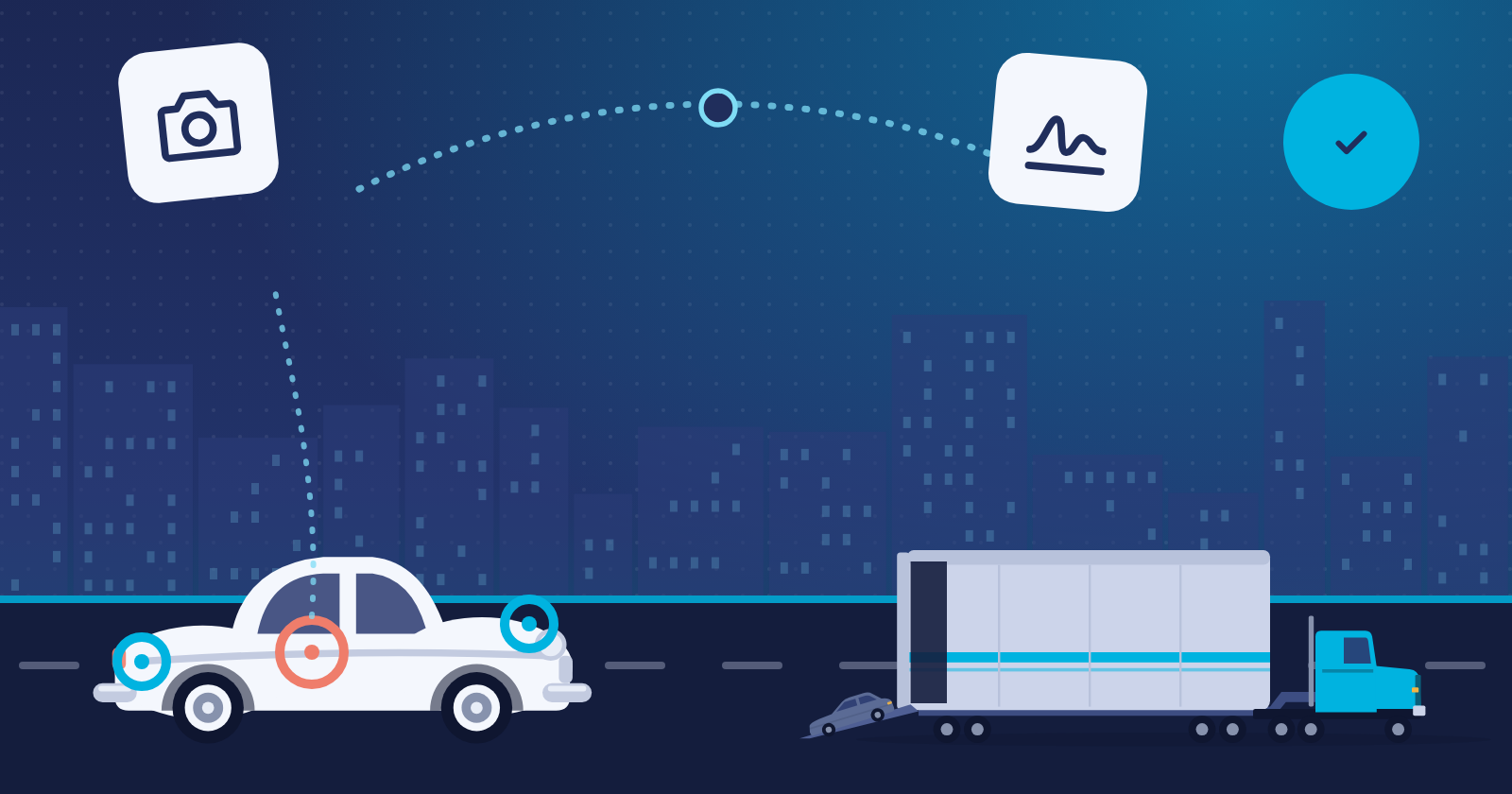
On an enclosed move, the customer is usually trusting you with a vehicle they care about a great deal: an exotic, a classic, a collector car, or a new high-value unit. When something is questioned at delivery, the conversation goes one of two ways. Either you can show exactly what the vehicle looked like when your driver picked it up, or it comes down to one person’s word against another’s.
The condition record is what decides which conversation you have. Here’s how to build one that holds up from the first photo at pickup to the customer’s signature at delivery, and how GoPhore supports each step.
Why the condition record matters more on enclosed and high-value moves
Owners choose enclosed transport because they want the vehicle protected and handled with care, and they tend to look closely when it comes off the trailer. That raises the bar for your paperwork as much as for your equipment. A quick walk-around and a signature on a paper BOL rarely captures enough detail to settle a question about a small chip or a scuff weeks later.
A strong record has three qualities. It’s specific (it shows where the damage is, not just that there is some). It’s tied to the vehicle (by VIN, so it can’t get mixed up with another unit on the load). And the customer has seen it before they sign.
At pickup: mark damage on the vehicle diagram and on the photos
In the GoPhore driver app, the driver opens the VIN at pickup and records damage two ways:
- On the vehicle diagram. The driver picks a damage code and taps the exact spot on the diagram where it is. This works on OEM and non-OEM moves, so it fits a private-owner collector car as well as a manufacturer unit.
- On the photos. After taking pickup photos, the driver can open a photo, choose a damage code and tap the spot on the photo itself.
Saved work recovers after restarting the app or signing back in, so drivers working at a remote pickup don’t lose the record.
You can also set a minimum number of required photos for each customer, so your highest-value accounts always get the full set, and turn photo capture off where it isn’t needed.
On the VIN: one record that dispatch and the customer both see
Markups are stored on the VIN. That keeps the condition record attached to the vehicle for the whole move instead of sitting in a camera roll or a separate inspection form.
Your dispatch team can open the driver’s photos with View Photos on the dispatch BOLs list. Your customer gets the driver’s pickup and delivery photos on GoPhore Tracking, with a Download ZIP link. And you can follow every vehicle by VIN from pickup to delivery.
At delivery: the customer sees the pickup record before signing
When the driver reaches the signature step at delivery, the pickup damage markups appear on the authorization screen. On a multi-car load, the driver can switch between VINs to show the markups for each one.
Make this a firm rule for your drivers: show the customer the condition the car was in at pickup, every time, before they sign.
Before signing, the customer taps View details to review everything the driver entered. At delivery, the review also includes a pickup recap, with the pickup inspection shown alongside the delivery data. The customer’s signature is captured at pickup and at delivery.
When the customer can’t be there: signing links
High-value deliveries don’t always happen with the owner standing in the driveway. Dispatch can send a contactless signing link by email for the pickup, the delivery, or both. The signer signs on their own device and can view the VIN details, the driver’s photos and the BOL before they sign.
Two things to know. You send the pickup link and the delivery link separately. And make sure your drivers’ photos cover any existing damage clearly, because View details shows the signer everything the driver entered.
A pickup-to-signature checklist for your drivers
- Open the VIN at pickup before the vehicle moves.
- Take the full photo set your customer requires.
- Mark every existing damage point on the vehicle diagram with a damage code.
- Mark the same points on the photos where it helps show them clearly.
- Save the markups before loading.
- Get the customer’s signature at pickup.
- At delivery, show the customer the pickup markups on the signature screen, VIN by VIN.
- Have the customer tap View details and review everything the driver entered before signing.
- Capture the delivery signature.
- If the customer can’t be there, ask dispatch to send the signing link, and make sure the photos show any existing damage.
See it on your own workflow
GoPhore is built for carriers who move vehicles their customers can’t afford to have questioned. If you’d like to see the condition record on one of your own lanes, book a demo and we’ll walk through it with you.
Learn more about GoPhore for enclosed and high-value carriers.